To import a CSV file into any table, go to Back-end → Custom Tables → Tables → Records and click the Import CSV button.
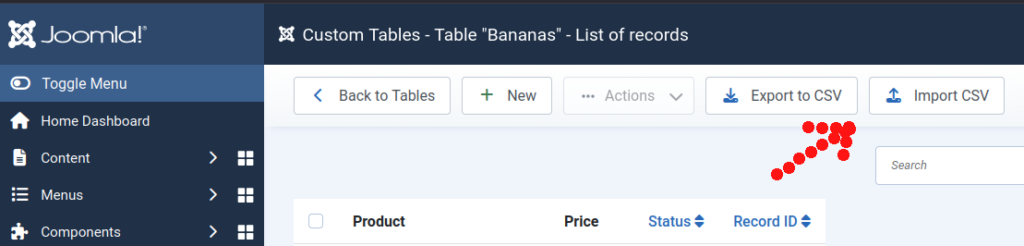
CSV file headers will be compared with the table field names in order to import the data into the correct fields.
Basic settings such as separator, enclosure, start from, and insert/update options will be displayed.
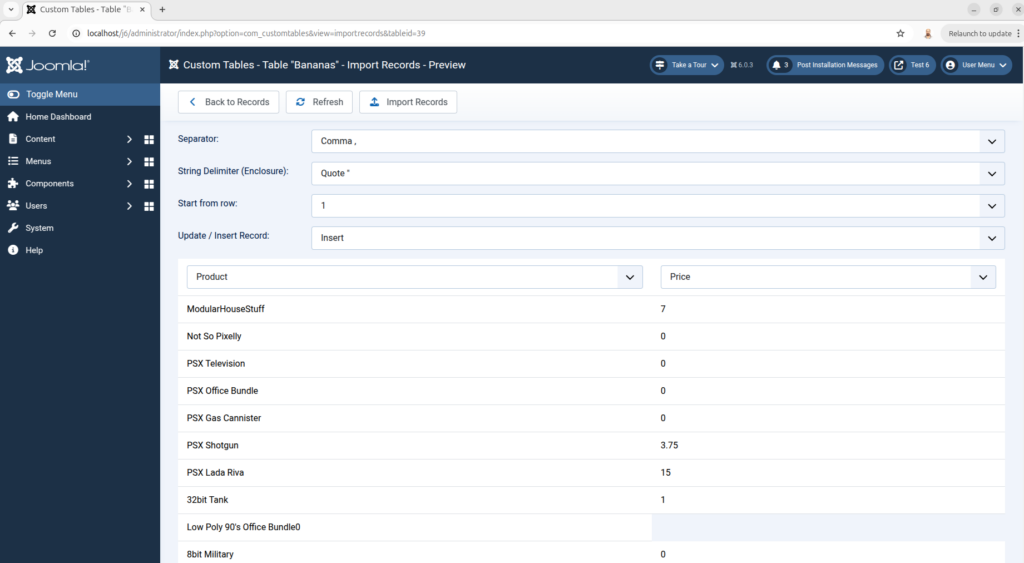
You can map the table fields for import by selecting the appropriate field for each column.
There is also an option to check record IDs to update existing records, or to find a record by the first column and update it instead of inserting a new record.
Options: #
- Insert / Update if Record ID matches
Use the record ID field (it must be present in the CSV file) to find a matching record. - Insert / Update if first column matches
Use the first column as an identifier to find a matching record. - Insert / Ignore Record ID
Records will be inserted even if this creates duplicate records.
Insert / Update if Record ID matches – Use record ID field (it must be present in the CSV file) to find the match.
Insert / Update if first column matches – Use the first column as an ID to find the match
Insert / Ignore Record ID – Records will inserted even if it will create duplicate records.
When finished, click Import Records.
Front-end CSV Import #
You can also add a tag to your Catalog Layout that generates an Upload button to import a CSV file from the front end into any table.
Add the following tag:
{{ html.importcsv() }}This will render an Upload button. The front-end interface is simplified and does not include field mapping or other advanced settings.


Leave a Reply
You must be logged in to post a comment.